Whether you need an instrumental for karaoke, an acapella for a remix, or individual drum and bass tracks for practice, AI stem separation does in about a minute what used to require studio multitracks. This walkthrough uses the Audio Separation Studio — no editor or install required.
Step-by-Step Guide
Open the Audio Separation Studio
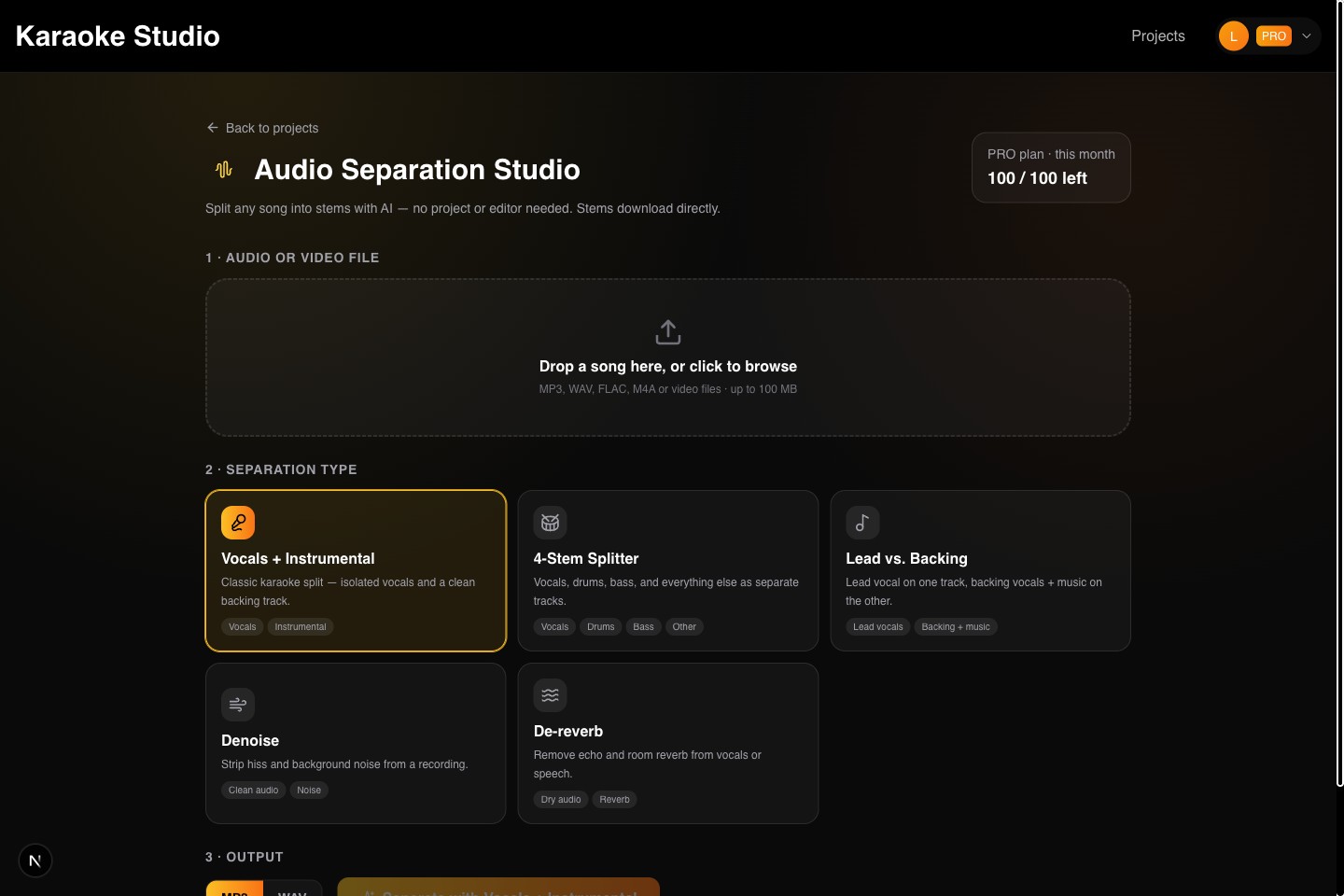
Go to karaokestudio.pro/tools/audio-separation and sign in (the free plan includes separations every month). The studio is a single page: file, separation type, output.
Upload your song
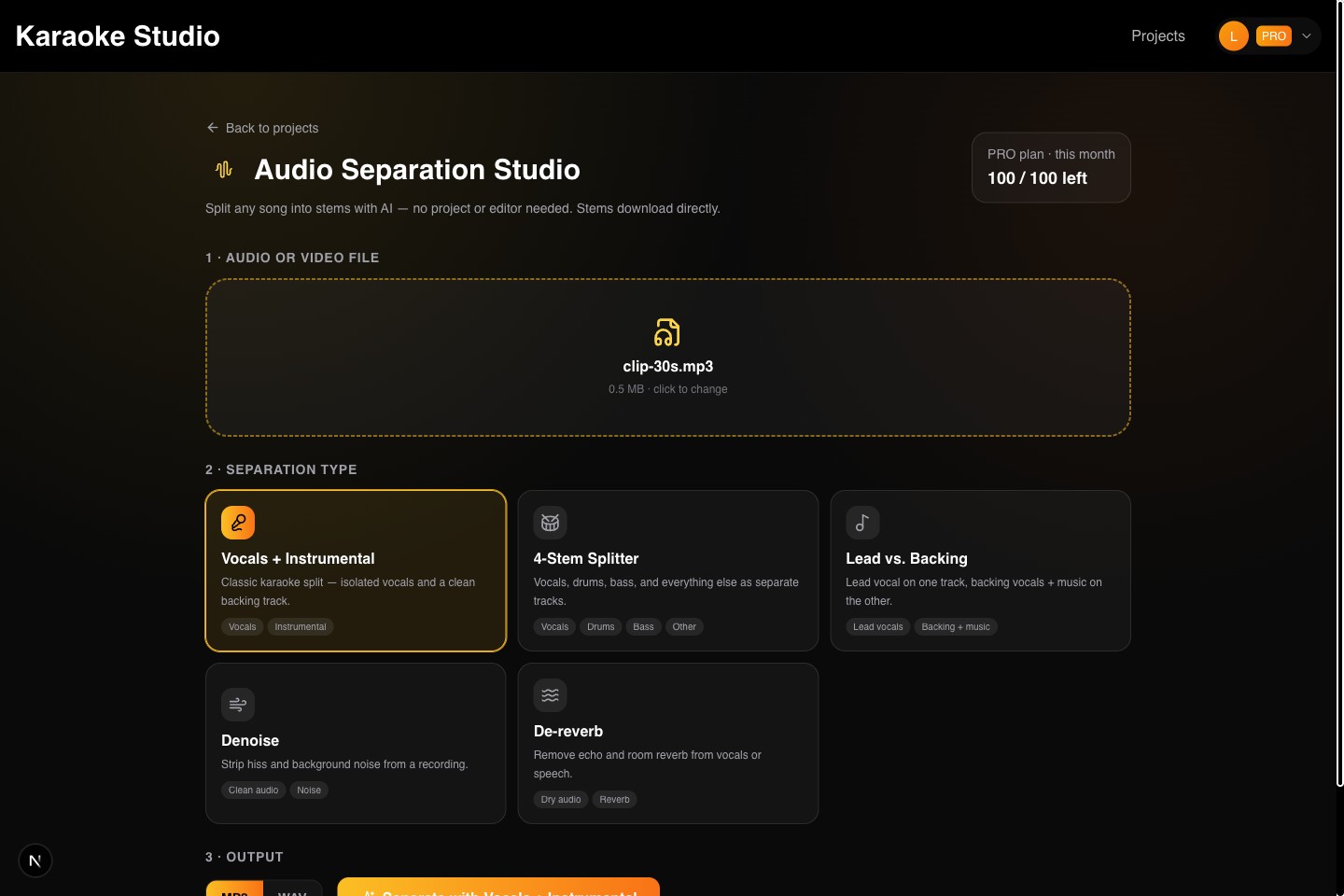
Drop in an MP3, WAV, FLAC, M4A, or even a video file up to 100MB. Files upload securely and are deleted from the server about an hour after processing.
Choose a separation type
Pick from five presets: Vocals + Instrumental (classic karaoke split), 4-Stem Splitter (vocals, drums, bass, other), Lead vs. Backing vocals, Denoise, or De-reverb. Each card shows exactly which stems you'll get.
Pick MP3 or WAV and separate
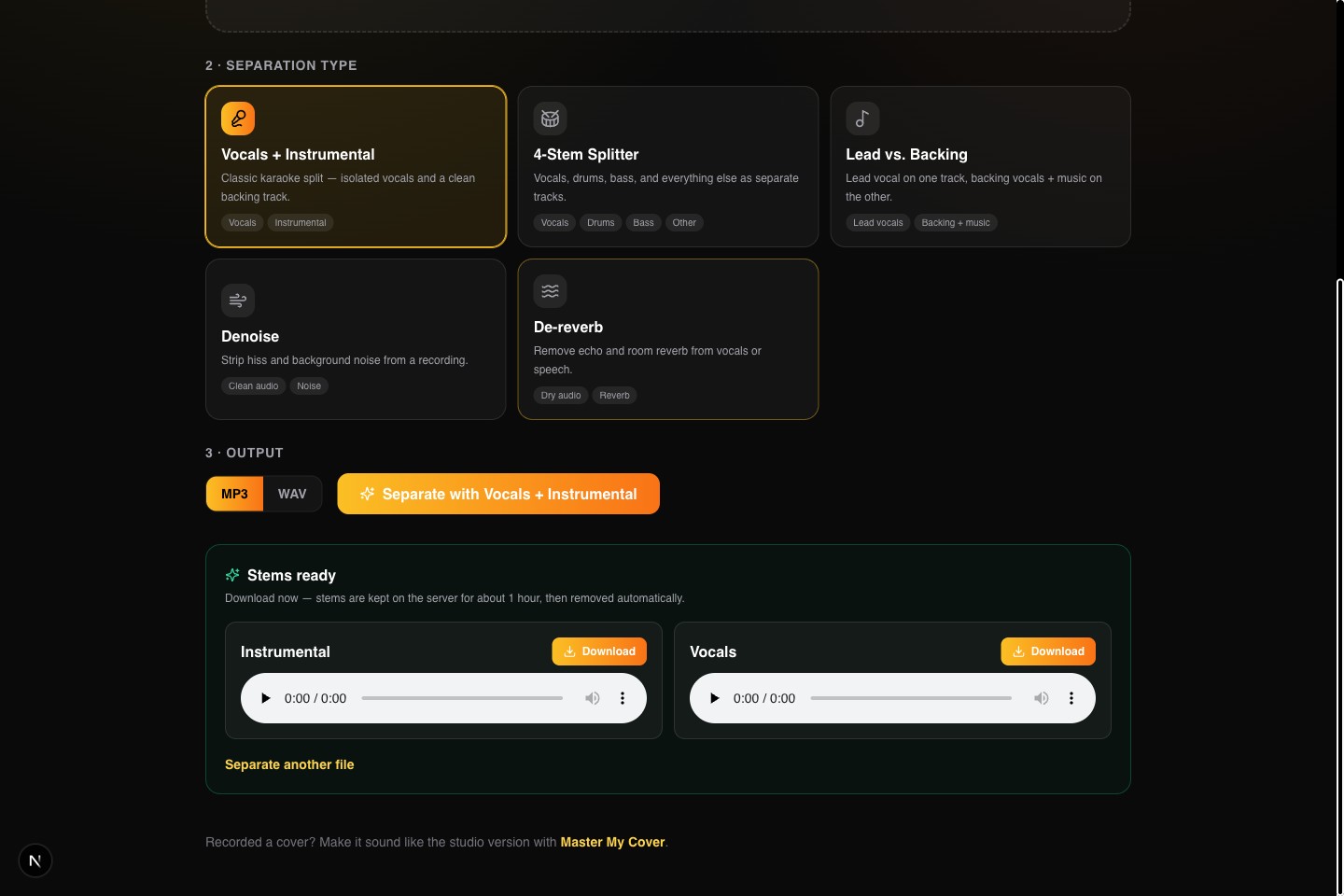
Choose your output format and hit Separate. Processing runs on GPU servers — a full song typically takes under a minute, and you can keep the tab in the background.
Download your stems
Each stem appears as its own download button. Grab what you need — they stay available for about an hour, then are removed automatically for privacy.
💡Pro Tips
- •For karaoke, the Vocals + Instrumental preset gives the cleanest backing track; Lead vs. Backing is better when you want to keep the backing harmonies.
- •Use WAV output if you plan to edit the stems further; MP3 is fine for listening and practice.
- •Recording sounds roomy or noisy? Run it through De-reverb or Denoise first, then separate.