You recorded a great cover, but next to the original it sounds quiet and thin. That's not your performance — it's mastering. Reference mastering fixes it by measuring the original track and matching your recording to it. Here's the whole process, start to finish.
Step-by-Step Guide
Open Master My Cover
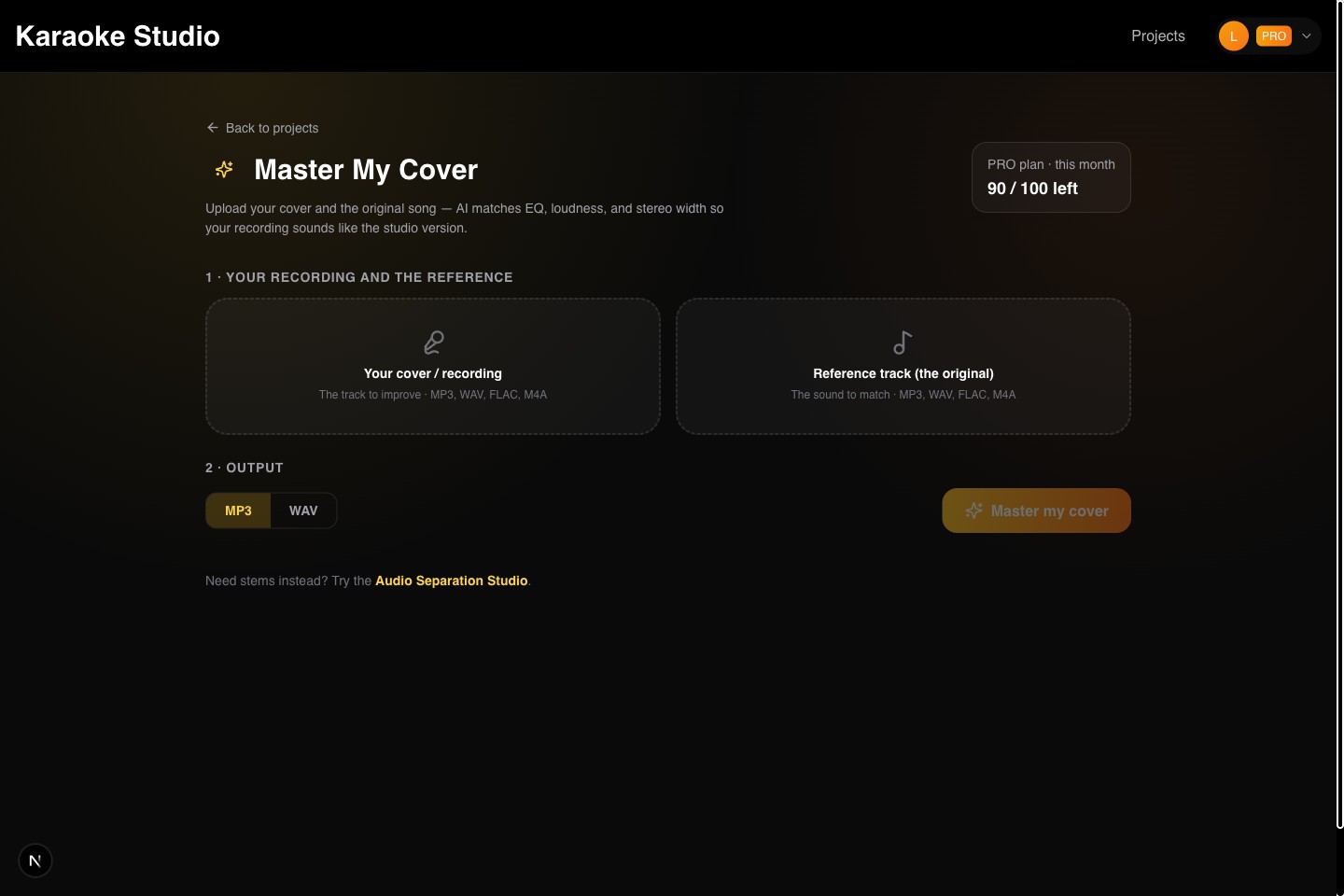
Go to karaokestudio.pro/tools/master-my-cover and sign in. You'll see two upload slots: your recording and the reference.
Upload your cover
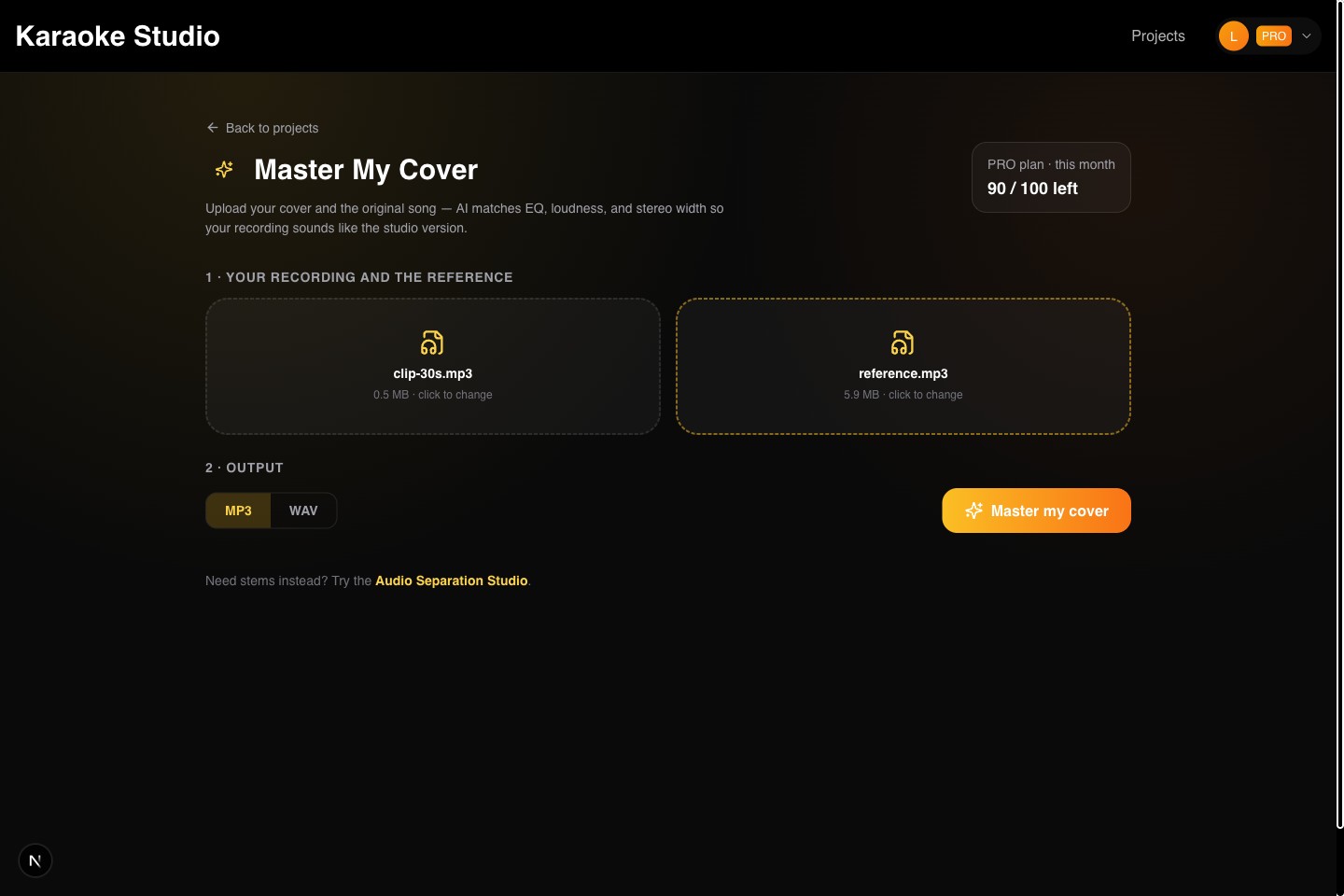
Drop your mix into the 'Your cover / recording' slot — MP3, WAV, FLAC, or M4A up to 100MB. A rough bounce from your recording app is fine; that's exactly what mastering is for.
Add the reference track
Upload the original studio version of the song into the reference slot. The AI will measure its EQ curve, loudness, and stereo width as the target.
Choose a format and master
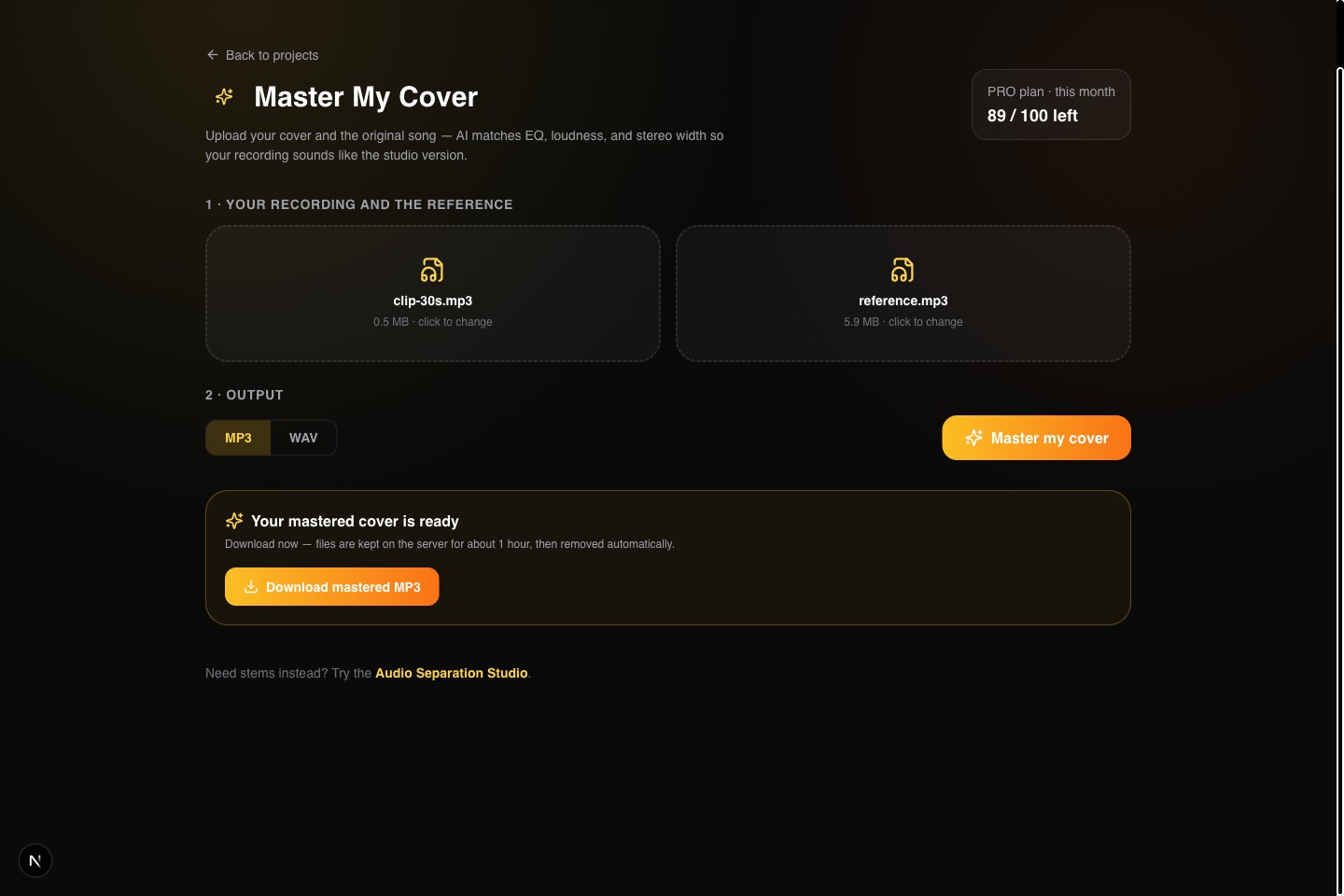
Pick MP3 (sharing) or WAV (further editing) and click Master my cover. GPU processing takes about a minute for a full song.
Download and compare
Download the mastered file and A/B it against your original bounce — you should hear matched loudness, a fuller low end, and a polished top end.
💡Pro Tips
- •The reference doesn't have to be the same song — any professionally mastered track with the sound you want works.
- •Don't squash your mix before uploading; a clean, dynamic mix gives the mastering engine more to work with.
- •Chain tools: tune your vocal with AI Autotune, add AI Harmonies, mix, then master the final bounce.